Aero Dock is a multi-display window tool for macOS: one Center Control panel for every display and window, and a dock of its own on every screen. It works alongside the system Dock instead of replacing it.
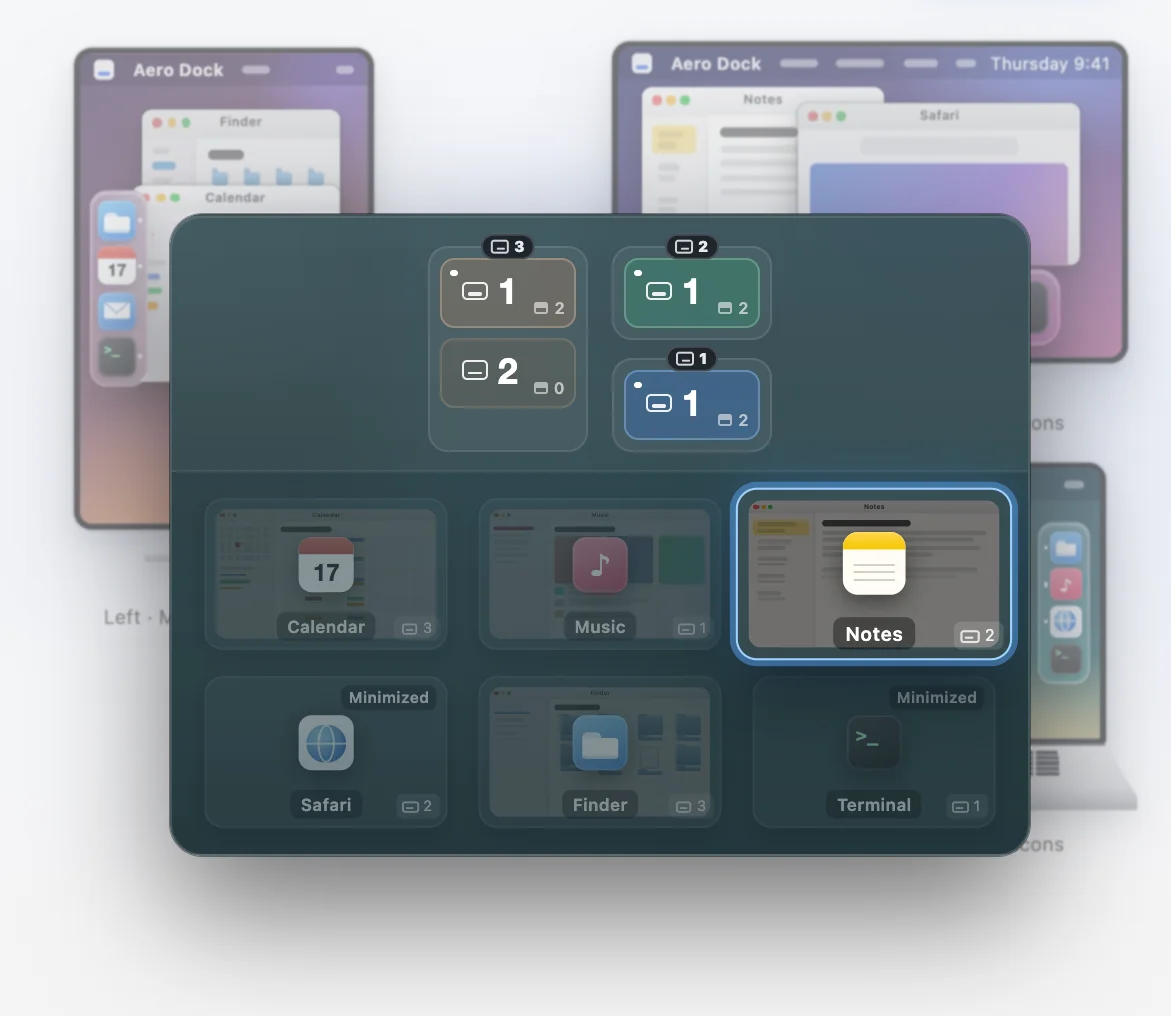
Once you plug in a second or third display, windows end up scattered, and the system Dock still gives you only one. That is the problem Aero Dock is built for. The four features below match the four demos on the website.
Visit the Aero Dock website for the full animations, or go straight to the download section.
01 Global window switcher
See every open window. Switch freely.
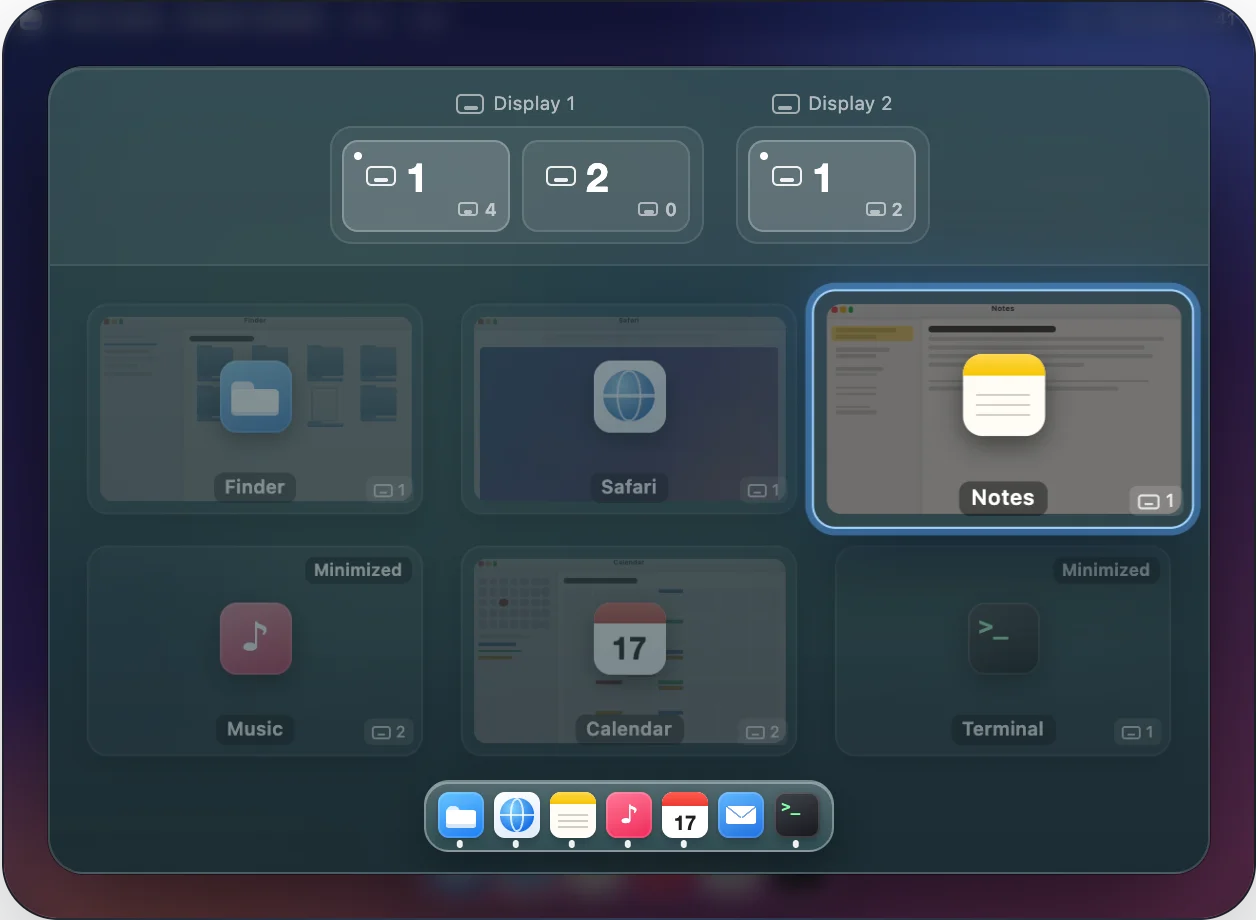
In Center Control, your open windows become thumbnails grouped by display and desktop, so you can see what is open on every screen at a glance. Click one and that window comes to the front of the display it lives on; minimized windows are listed too. A dock sits along the bottom of the panel, so you can launch an app from there as well.
02 Desktop control
Add and close desktops freely.
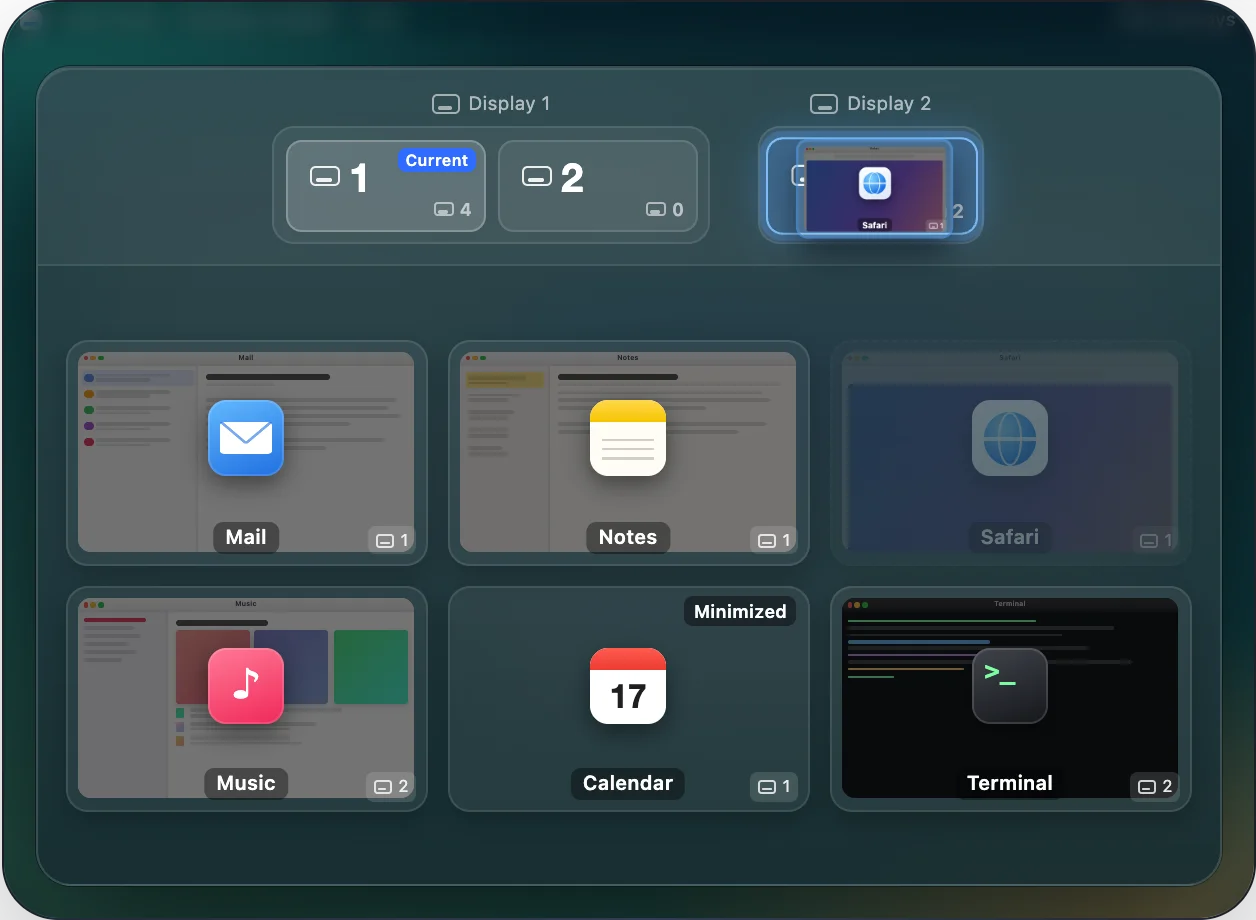
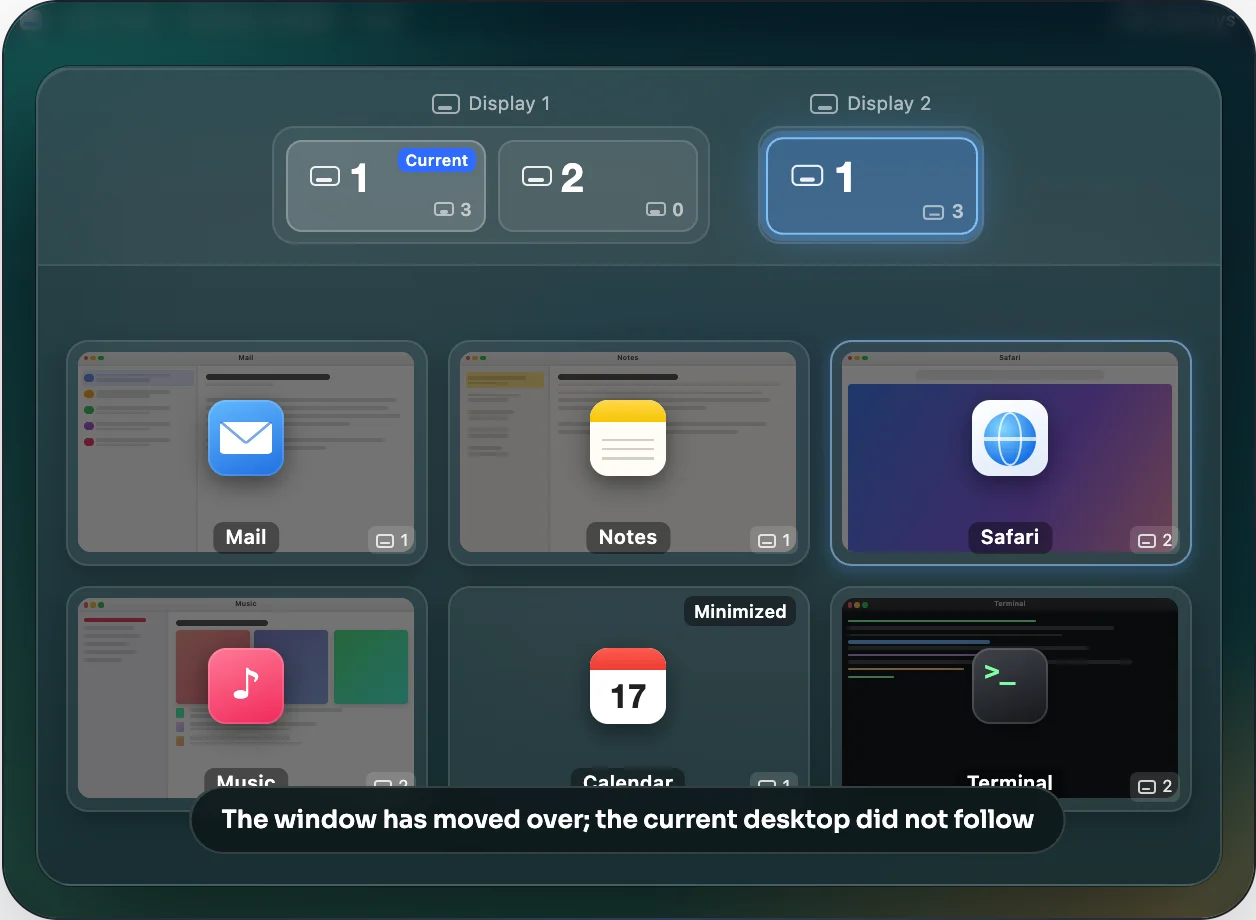
Desktop control manages the desktops themselves: add a new one, or close one you no longer need. Windows aren’t pinned to a single display or desktop either — drag a window’s thumbnail onto another display or desktop, the target lights up, and the window moves there when you let go.
After the move, you stay on the desktop you were on. You and your windows can go separate ways.
03 Multi-display docks
Every display gets its own dock.
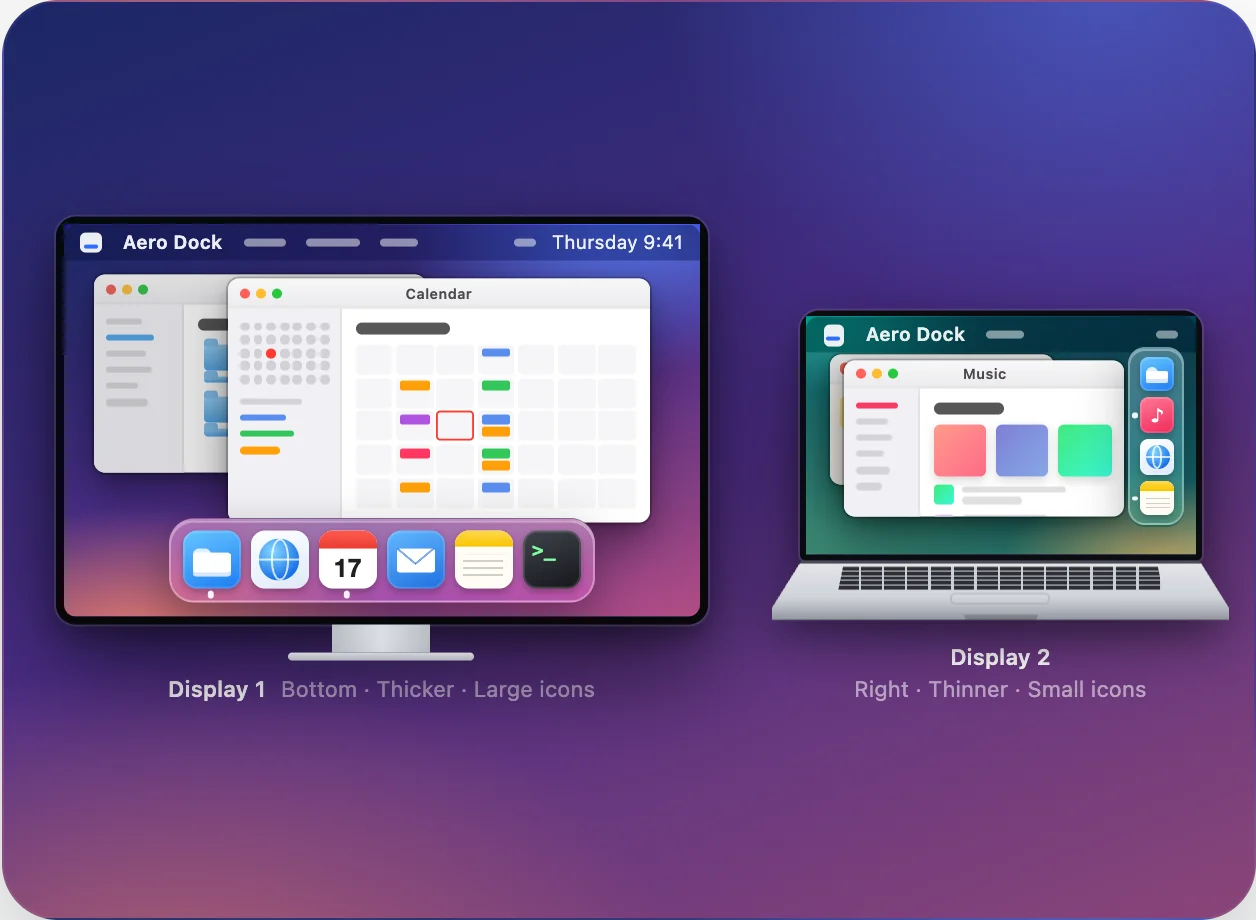
With external displays, every screen no longer has to share one dock layout. Aero Dock places a separate dock panel on each display for browsing and launching your apps.
Position, thickness, icon size, and show or hide are all set per display: one screen can keep its dock at the bottom with large icons, while another puts a thinner one on the side. Click an icon and the app opens on that display.
04 Window zoom
Zoom into any window and work right inside it.
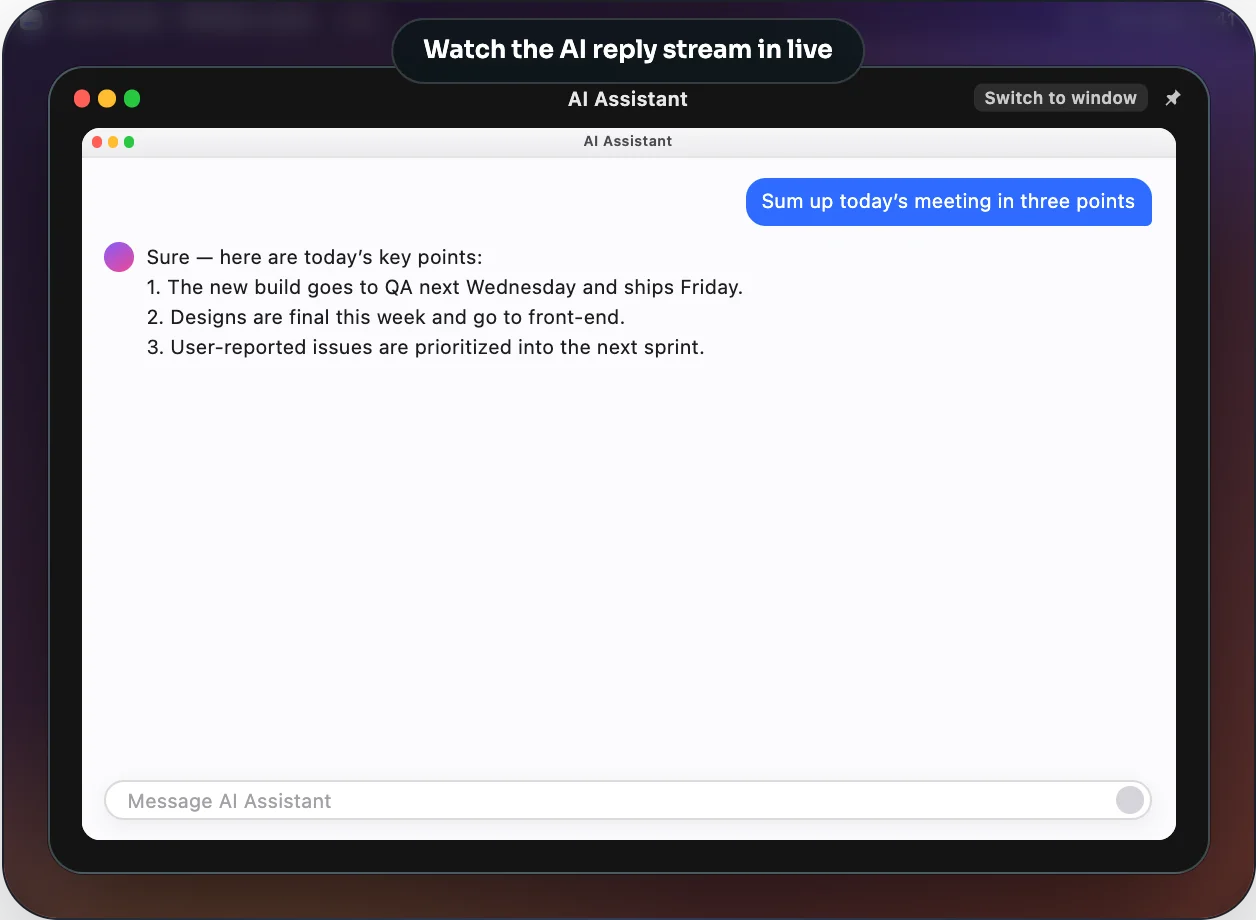
In Center Control, click the zoom button on a window card and the window’s live content fills the panel — windows on other desktops and full-screen windows included. Clicks and scrolling stay in the zoomed view; start typing and you switch to that window to keep going.
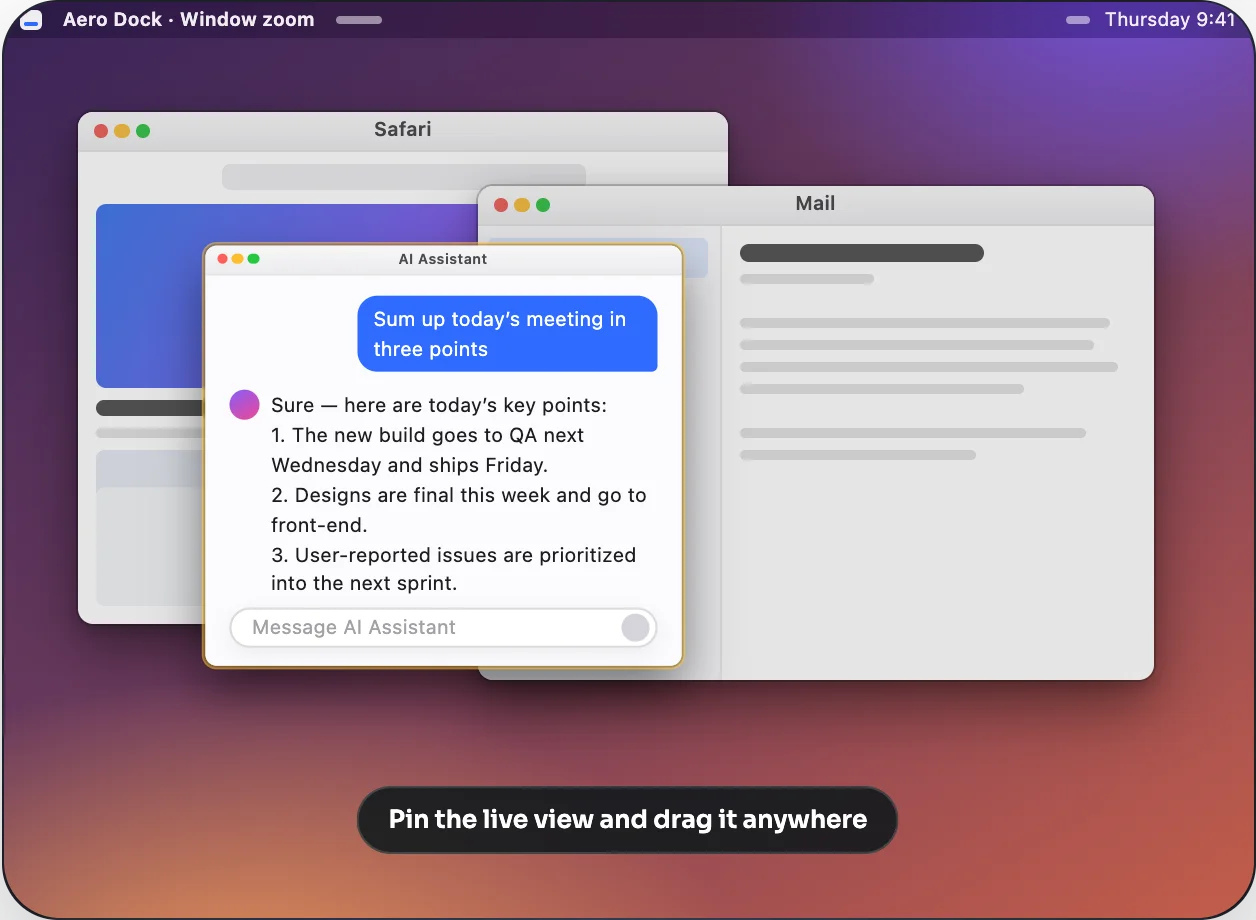
Click the pin and it becomes a small always-on-top window you can drag anywhere, so you can keep an eye on it while doing something else — say, while an AI assistant finishes its reply.
Download and install
- Platform: Mac with Apple Silicon; Intel Macs are not supported yet
- Package: DMG, in Chinese and English editions; the website offers the one that matches the page language
Download it from the Aero Dock download section, open the DMG, and follow the prompts to install. The app is still evolving — see the changelog for what’s new. Try it, and feedback is welcome.
One panel for every display and window, with the system Dock still in place — if you work across several screens, give Aero Dock a try.